

If you want your visitors to trust your business, there’s no better way than showing what real customers are saying about you. Embedding Google Reviews on your Wix website instantly builds credibility, boosts conversions, and keeps people engaged longer — all without complicated coding.
Here’s a simple, step-by-step walkthrough to get Google Reviews up and running on your Wix site.
Why Embed Google Reviews on Wix?
Before we start with the steps, let’s look at why this matters:
✔️ Build Instant Trust
Visitors trust real user feedback far more than brand copy. Displaying positive Google Reviews gives a sense of authenticity and confidence to new visitors right away.
✔️ Increase Conversions
Seeing happy customer experiences encourages others to take action — like contacting you, booking a service, or buying a product. This is why many local businesses choose to add Google Reviews to Wix website pages where users are most likely to make a decision.
✔️ Improve Local SEO
Google Reviews also help your local search presence. When people search for your business, good reviews can make your site stand out.
Step-by-Step: How to Embed Google Reviews on Wix
There are a few reliable ways to aggregate Google Reviews — from plugins/apps available in the Wix App Market to embed code from review tools. Below we’ll cover the most common and beginner-friendly methods.
Step 1: Decide How You Want to Embed Reviews
You have two main options:
- Use a Reviews App/Widget – Easy setup, auto-updating reviews.
- Use Embed Code (HTML Block) – Works with tools like Taggbox that generate google reviews embed code.
Both methods are effective — pick the one that fits your comfort level.
Tip: If you want reviews to update automatically and look professional, a widget is usually the best choice.
Method 1: Use a Google Reviews App from Wix App Market
This is the easiest way — no code required.
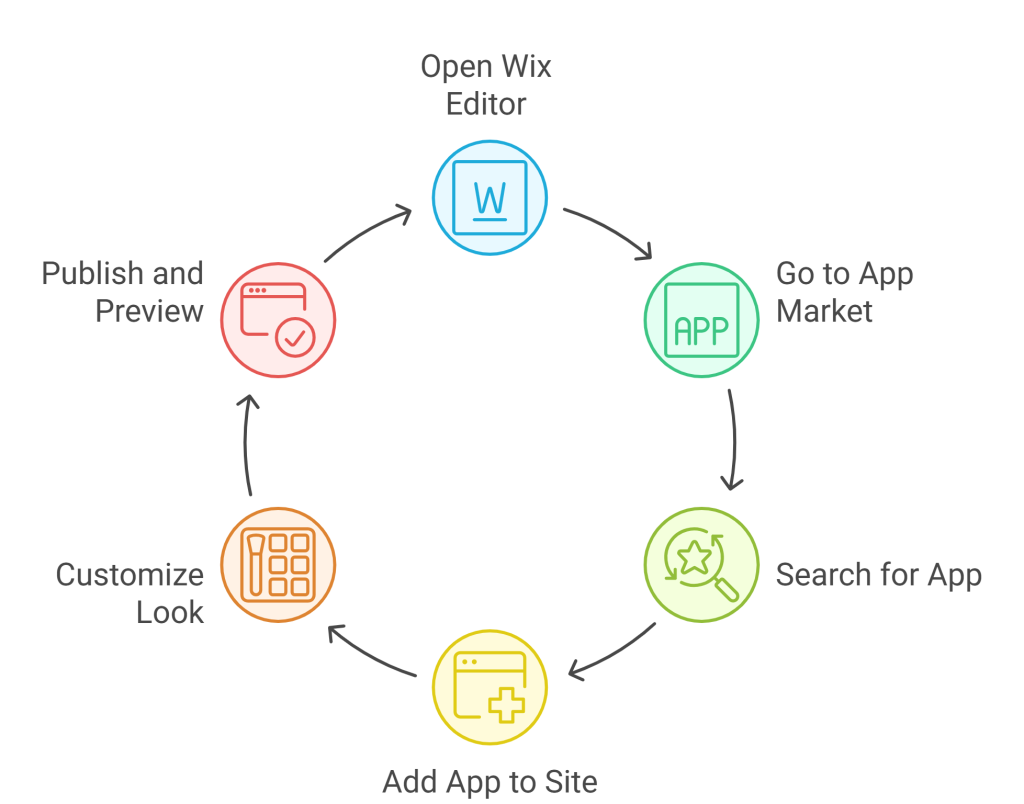
✔ Open Your Wix Editor
Log in to your Wix dashboard and open the website where you want to add reviews.
✔ Go to the App Market
Click the “Add Apps” icon on the left sidebar.
✔ Search for a Google Reviews App
Look for apps like:
- Google Reviews by Elfsight
- Google Reviews PRO
These tools like Taggbox are designed to pull your Google Business reviews and display them on your site.
✔ Add the App to Your Site
Click “Add to Site”, then follow the app’s setup instructions. These usually involve linking your Google Business Profile so the tool can fetch your reviews.
✔ Customize the Look
Most apps let you choose a layout (grid, list, carousel), colors, fonts, and the number of reviews to show.
✔ Publish and Preview
Once set up, click Publish. Head to your live Wix site and check how the reviews look.
Why this method works: The app takes care of keeping reviews fresh and can show star ratings, reviewer name, and review text automatically.
Method 2: Embed Google Reviews Using HTML Code
If you’re using a third-party tool (like Taggbox, Tagembed, etc.) that gives you an embed code, follow these steps:
✔ Create Your Reviews Widget
Sign up for a review tool that supports Google Reviews — for example, Taggbox or Tagembed. Customize how you want the reviews to appear (layout, style, filters).
✔ Generate the Embed Code
Once done, the review platform will give you an HTML embed code — basically a snippet you can paste into your Wix page.
✔ Open Your Wix Editor
Navigate to the page where you want the Google Reviews to appear.
✔ Add an HTML Block
- Click the ➕ (Add) button
- Select “Embed Code”
- Choose “Embed HTML”
✔ Paste the Code
In the HTML pop-up, paste the embed code provided by your review tool.
✔ Update and Publish
Click Update, adjust placement and size if needed, and Publish your site.
Your Google Reviews widget should now show on the page.
Where to Place Google Reviews on Your Site
Placement matters — don’t just add reviews randomly. Here are the best spots:
🏠 Homepage
Great for trust building from the first glimpse.
🛍️ Product or Service Pages
Reinforces confidence before a purchase decision.
📄 About Us Page
Personalizes your story with user experiences.
☎️ Contact Page
Encourages engagement and gets people comfortable reaching out.
Tips for Making Reviews Work Harder
Here’s how to get even more value from your embedded reviews:
✅ Show recent reviews — fresh social proof feels more relevant.
✅ Highlight star ratings — ratings catch the eye quickly.
✅ Use carousel layout — it’s engaging without taking too much space.
✅ Encourage more reviews — add a button like “Write a Review” near your widget.
Troubleshooting Common Issues
If the reviews don’t appear correctly, try these fixes:
🔹 Make sure your Google Business listing is verified
🔹 Check your embed code isn’t missing any tags
🔹 Resize the block in Wix to fit the widget properly
🔹 If using a tool, confirm your API connection is active
Final Thoughts
Embedding Google Reviews on your Wix website doesn’t have to be complicated. Whether you choose a widget from the Wix App Market or embed HTML code from a third-party tool, you can have powerful social proof up and running in minutes.
Adding real customer voices to your site builds trust, credibility, and engagement — all essential for growing your business online.